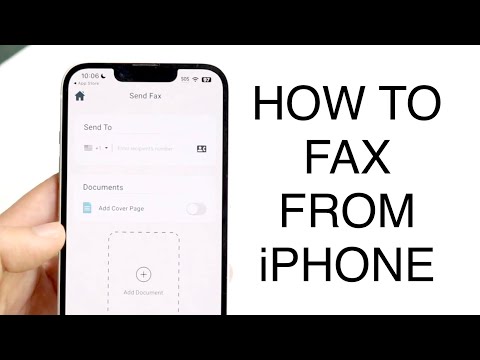
How to Fax from iPhone Free: A Complete Guide
Why You Might Still Need Faxing on an iPhone
Even in a cloud‑first world, many industries – such as healthcare, legal, and real estate – still rely on fax as a legal or compliance requirement. Mobile professionals often need to send a fax while on the go, and the iPhone is the device most people carry everywhere. By understanding how to fax from iPhone free, you can avoid the hassle of hunting down a desktop scanner or a physical fax machine. The convenience of sending a fax directly from your phone also speeds up workflows and reduces paper waste.
When you combine a free fax app with the iPhone’s built‑in camera and document scanner, the process becomes almost seamless. You can capture a signed contract, convert it to PDF, and transmit it in seconds. This capability is especially valuable for small business owners, independent contractors, and remote workers who need a reliable fallback for fax‑only partners. The key is finding a solution that offers genuine no‑cost usage without hidden fees.
Top Free Fax Apps for iPhone (2024 Overview)
Several free fax apps have emerged that let you send a limited number of pages each month without paying a subscription. While most free tiers impose a page cap or display occasional ads, they still provide enough functionality for occasional use. Below is a quick snapshot of the most popular options available on the App Store as of 2024.
| App Name | Free Pages/Month | Supported File Types | Ads or Watermark |
|---|---|---|---|
| FaxZero | 5 | PDF, JPG, PNG | Branding on cover page |
| MyFax Lite | 3 | PDF, DOCX, TXT | Small banner ad |
| eFax Free | 2 | PDF, JPEG | No ads, but limited pages |
All three apps share a similar core workflow: install, create a free account, upload or capture your document, enter the recipient’s fax number, and hit send. While the free page limits may seem low, many users find them sufficient for occasional legal signatures or medical forms. If you anticipate a higher volume, you can usually upgrade to a paid plan directly within the app.
Step‑by‑Step: Sending a Fax from Your iPhone at No Cost
1. Install and Register the Free App
Locate the chosen fax app in the App Store and tap “Get” to download it. After installation, open the app and follow the on‑screen prompts to create a free account. You’ll typically need an email address and a password; some apps also allow social sign‑in for quicker setup. During registration, the app may ask for permission to access your contacts and camera – grant these to streamline future faxing.
Once your account is active, you’ll see a dashboard that shows your remaining free pages for the month. This dashboard is useful for monitoring usage and avoiding surprise limits. Many apps also provide a short tutorial video or tips screen the first time you launch the app.
2. Prepare Your Document
The easiest way to get a document onto your iPhone is to use the built‑in “Scan Documents” feature in the Files or Notes app, then save it as a PDF. Alternatively, you can take a clear photo of a paper document, crop it, and the fax app will often auto‑convert the image to PDF for you. Be sure the text is legible; low‑resolution images can cause transmission errors on the receiving end.
If you already have a digital file (e.g., a contract saved on iCloud or Google Drive), you can import it directly into the fax app. Most free apps support PDF, DOCX, and common image formats. Organize the pages in the correct order before you proceed, as many free services do not offer a preview after you hit “Send.”
3. Enter Recipient Details and Send
Navigate to the “New Fax” screen, then type the recipient’s fax number, including any necessary country or area codes. Some apps allow you to select a contact from your address book, automatically filling in the number. Add a brief cover sheet if the app provides the option – this can include a subject line, sender information, and a short message.
After reviewing the information, press the “Send” button. The app will queue the fax and show you a status indicator (e.g., “Sending,” “Queued,” or “Delivered”). Most free services send an email confirmation with a transmission receipt, which can serve as proof of delivery.
Key Features to Look for in a Free Fax App
Not every free fax app is created equal. When deciding which one to adopt for occasional faxing, consider the following features that enhance usability and reliability.
- Page Limit Transparency – Clear display of remaining free pages and any rollover policy.
- File Type Flexibility – Ability to send PDFs, images, and common office documents without extra conversion steps.
- Cover Sheet Options – Customizable cover page fields for sender name, fax number, and notes.
- Transmission Tracking – Real‑time status updates and email or push notifications when the fax is delivered.
- Security Measures – End‑to‑end encryption during upload and storage, plus compliance with standards such as HIPAA for medical documents.
Additional niceties like ad‑free experiences, multi‑page batching, and integration with cloud storage services (e.g., Dropbox, Google Drive) can make the app feel more polished, though they are rarely part of a truly free tier.
Security and Privacy Considerations
When you fax a document, you are transmitting potentially sensitive information over the public telephone network. Free fax apps mitigate risk by converting your file to a secure digital format and sending it through encrypted channels to the fax gateway. Nonetheless, you should verify that the provider states a clear privacy policy and does not retain your documents longer than necessary.
Look for apps that delete uploaded files from their servers shortly after successful transmission and that do not share your data with third parties for marketing. If you handle protected health information (PHI) or personally identifiable information (PII), choose a service that advertises HIPAA‑compliant handling, even on the free tier.
Common Limitations of Free Fax Services
Free plans are designed to showcase the product, so they typically come with trade‑offs. Expect a modest number of pages per month, occasional branding on the cover sheet, or limited customer support options. Some providers may also impose a cap on the number of fax numbers you can send to, or they might restrict international faxing.
These constraints are usually acceptable for occasional personal use, but if your business requires frequent faxing—such as daily contracts, medical claims, or legal filings—you’ll likely need to upgrade to a paid plan. The upgrade usually removes ads, increases page limits, and adds premium support channels.
FAQs About Faxing from iPhone Free
Q: Can I receive faxes on a free iPhone app?
A: Most free tiers focus on outbound faxing only. Receiving faxes typically requires a paid subscription or a dedicated virtual fax number.
Q: Is there a way to increase my free page limit without paying?
A: Some apps offer “refer a friend” programs that grant extra pages, while others reset the limit each calendar month.
Q: Will the recipient see that I used a free service?
A: If the app adds a branding watermark or cover‑sheet note, the recipient will notice it. Choose an app that offers a clean cover page if this matters to you.
Q: Are there any hidden fees?
A: Reputable free fax apps are upfront about their limits. However, be vigilant for in‑app purchases such as “buy extra pages” or “remove ads.”
Conclusion: Choosing the Right Free Fax App for Your Needs
Understanding how to fax from iPhone free empowers you to stay compliant and productive without the overhead of a traditional fax machine. Evaluate the options based on page limits, security, and essential features, then test an app with a low‑stakes fax to confirm the experience. When you’re ready to make a decision, you can explore curated recommendations at the best free fax app for iphone page.
Remember that free services are best suited for occasional use, while frequent faxers should consider a modestly priced plan that removes restrictions and adds dedicated support. With the right app installed, sending a fax from your pocket is just a few taps away, keeping your workflow smooth and paper‑light.